Debug a memory leak on a Node.js server running in ECS

Written by Lenvin Gonsalves.
on March 29, 2026
TLDR: One of our Node.js-based microservices was running out of memory. This post covers identification of the issue using monitoring tools, setting up a memory profiler against a live ECS container, and applying the fix.
Introduction
At Makro Pro, we use NestJS microservices for the marketplace backend. On one of the services, we noticed a rapid increase in memory consumption. The issue was so bad that the container was frequently crashing, and other services could not communicate with it.
We threw money at the problem by increasing the container memory. After some time, we hit a wall — so we had to address the root cause.
Importance of instrumentation
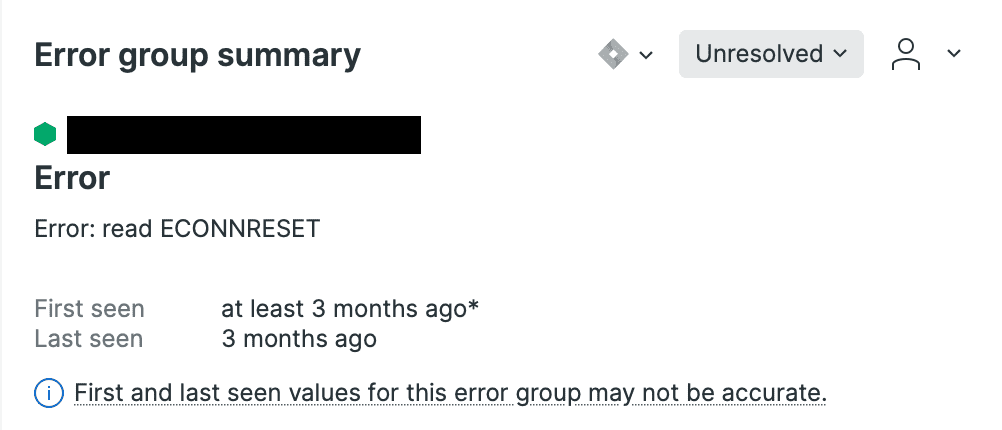
Thanks to our monitoring setup, we identified the problem early. We use NewRelic, which surfaces errors across services. We found errors showing that other services were getting ECONNRESET when trying to reach the affected service:
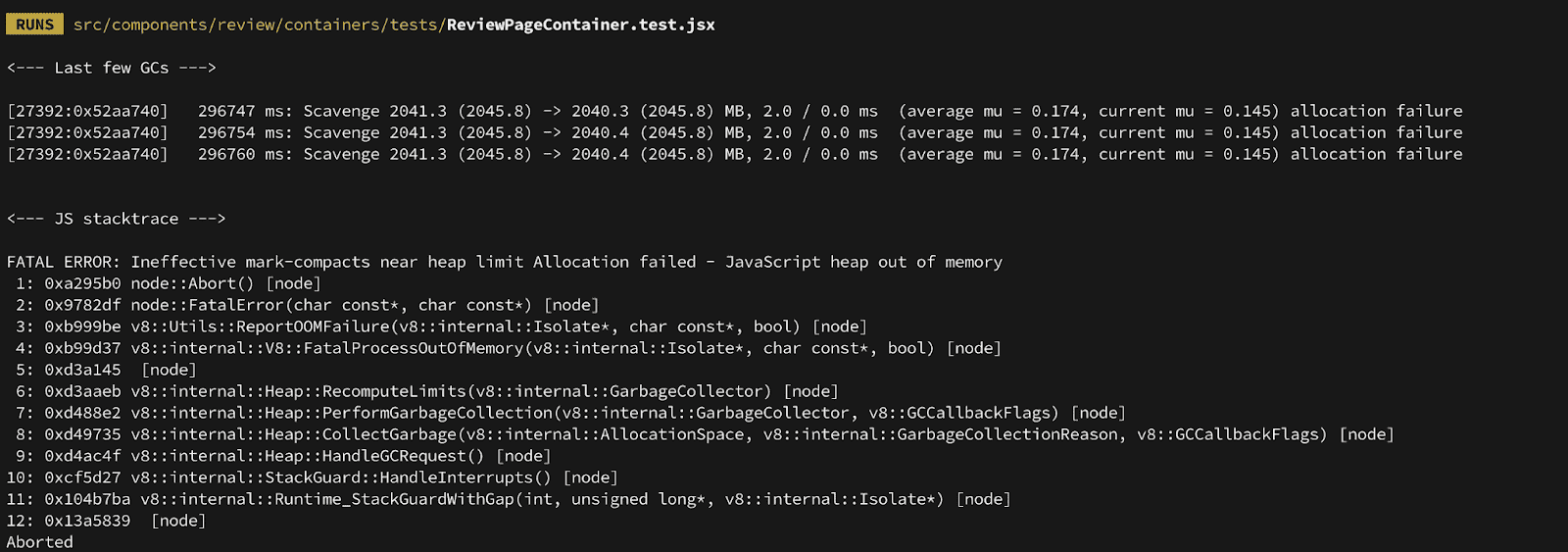
We investigated the container logs and found the culprit — a hard crash with a JavaScript heap out of memory error:
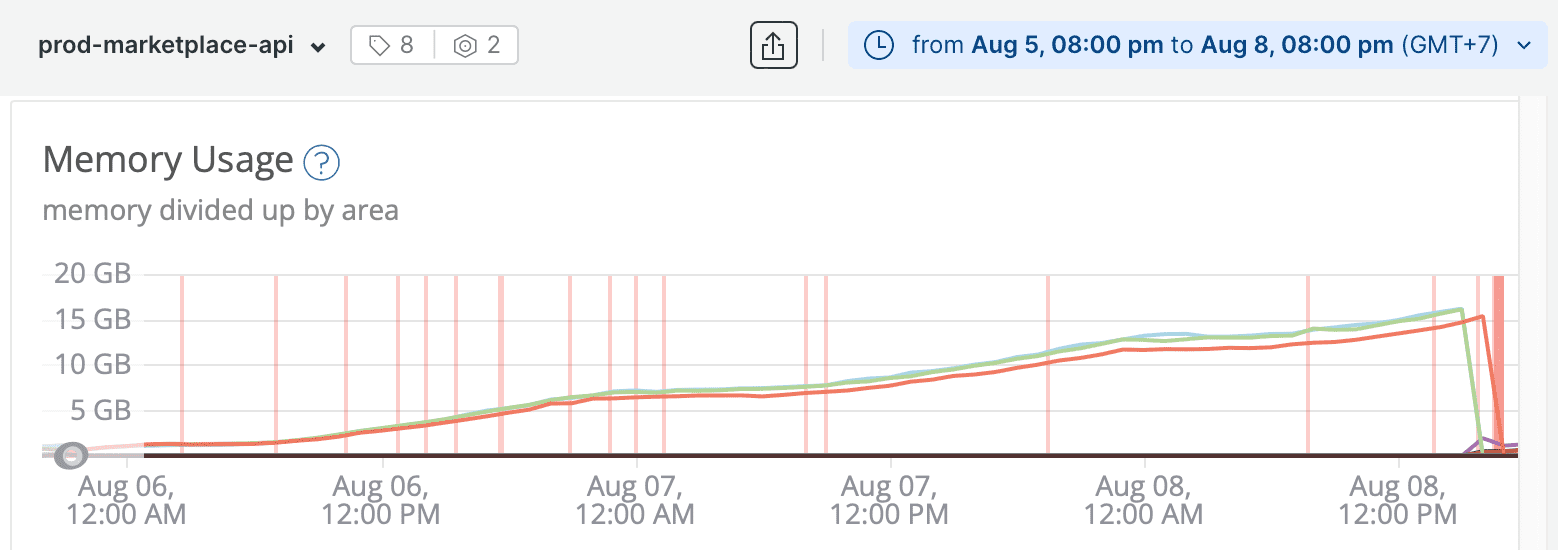
On NewRelic, we could visualise the heap size over time. The chart told the whole story — memory was climbing continuously from a few GB all the way to 15–20 GB before the container crashed:
Now that we had confirmed the problem, it was time to find the root cause.
Connecting the debugger to ECS
To run a heap profiler against a live ECS task, we needed to:
- Run the NestJS server in debug mode inside the container
- Expose port
9229on the ECS task definition - Enable
enable_execute_commandon the container - Port-forward
9229from the container to localhost
1. Run the NestJS server in debug mode
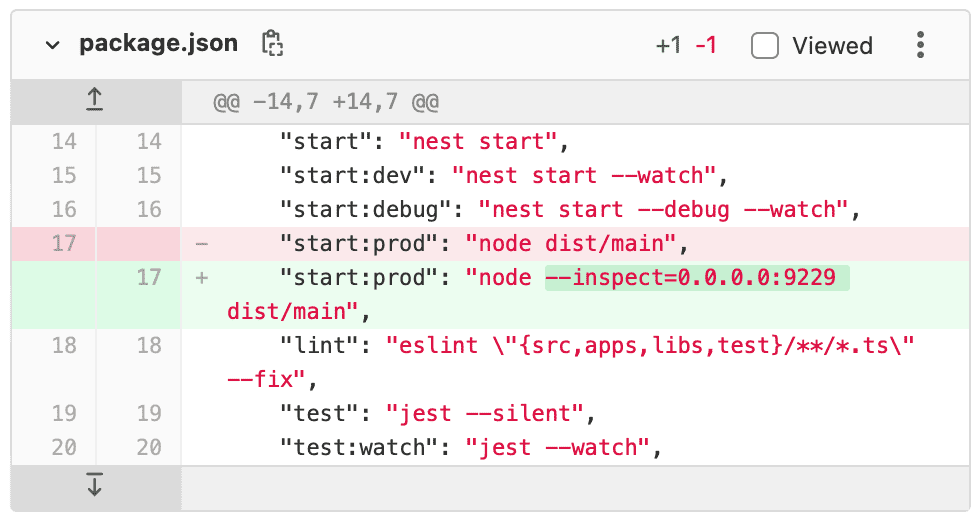
Ensure the node process starts with the --inspect flag in the ECS bootstrap script. Set the address to 0.0.0.0 only if the service is not exposed to the internet — in our case, the service was only discoverable within the VPC:
2. Expose port 9229 on the ECS task
Under the ECS task definition, scroll to Port Mappings and add port 9229. Configuration varies based on your networking setup (bridge vs. awsvpc mode).
3. Enable enable_execute_command
Add the required IAM permissions to the ECS task role so AWS Session Manager can exec into the container:
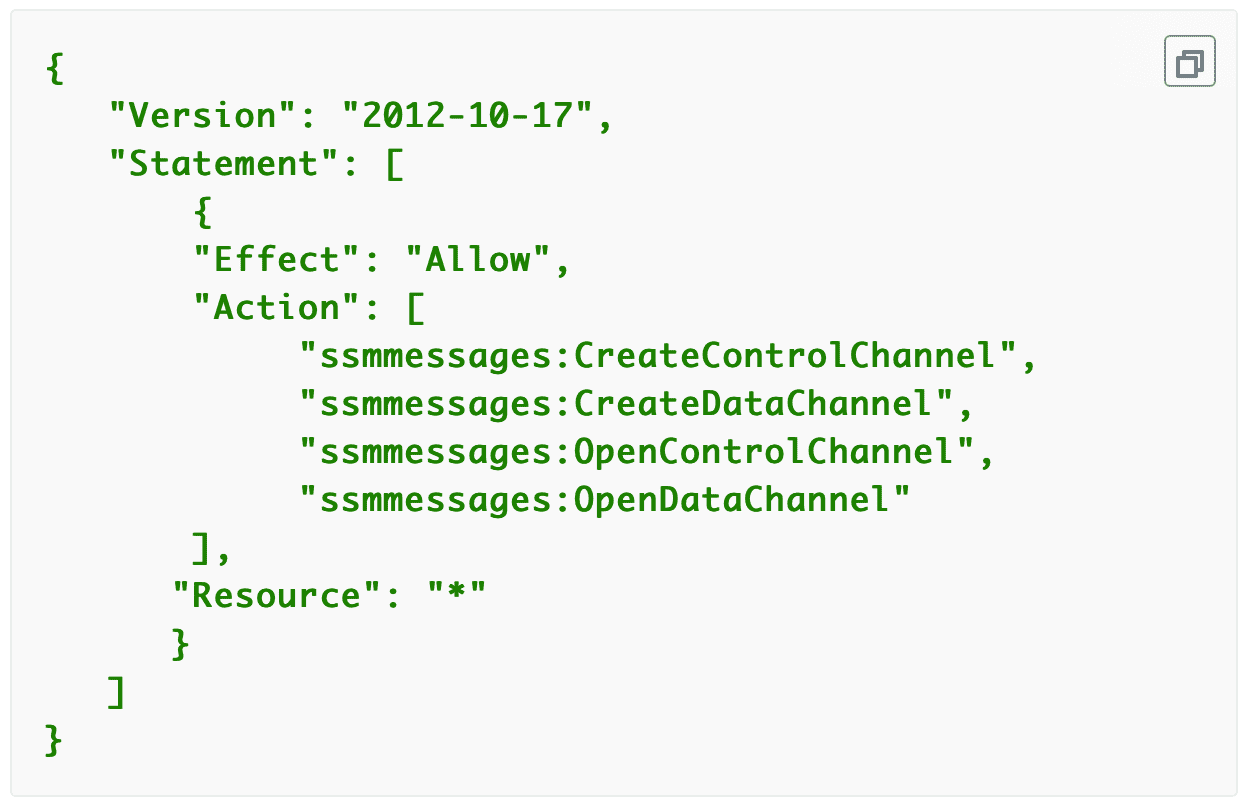
4. Port-forward from the container
It's not possible to connect a debugger directly to the container's port. Instead, create a local tunnel using ecs-exec-pf:
ecs-exec-pf -c ${cluster_name} -t ${task_id} -p 9229 -l 9229Taking a heap snapshot
With the tunnel running, open Chrome and navigate to chrome://inspect. Click "Open dedicated DevTools for Node":

If localhost:9229 doesn't appear automatically, add it manually:

Once connected, navigate to the Memory tab, select Heap Snapshot, and click Take Snapshot:
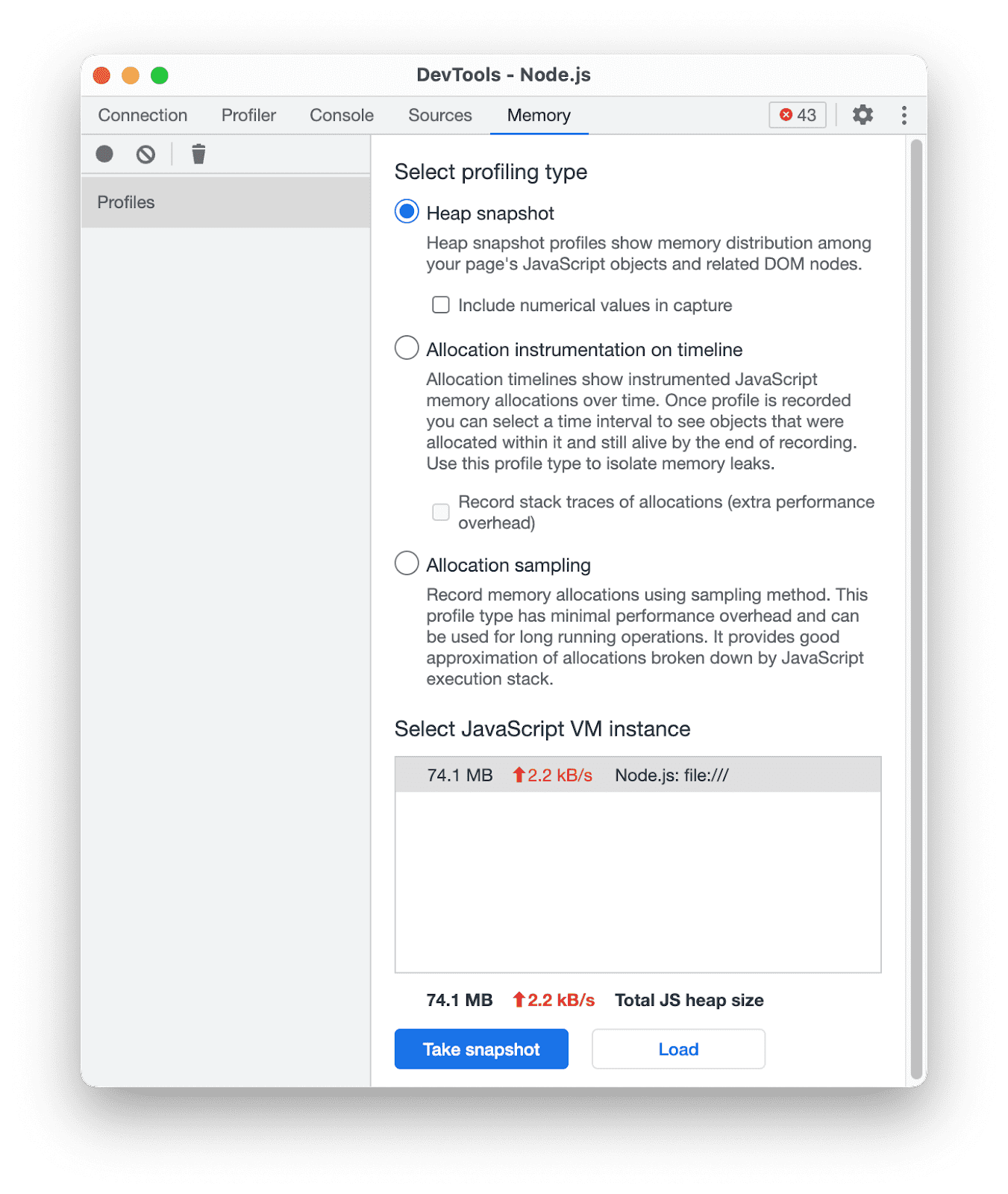
Finding the leak
In the snapshot, sorted by retained size, ThrottlerStorageService immediately stood out — it was consuming 34% of the entire heap in QA (almost certainly higher in production):
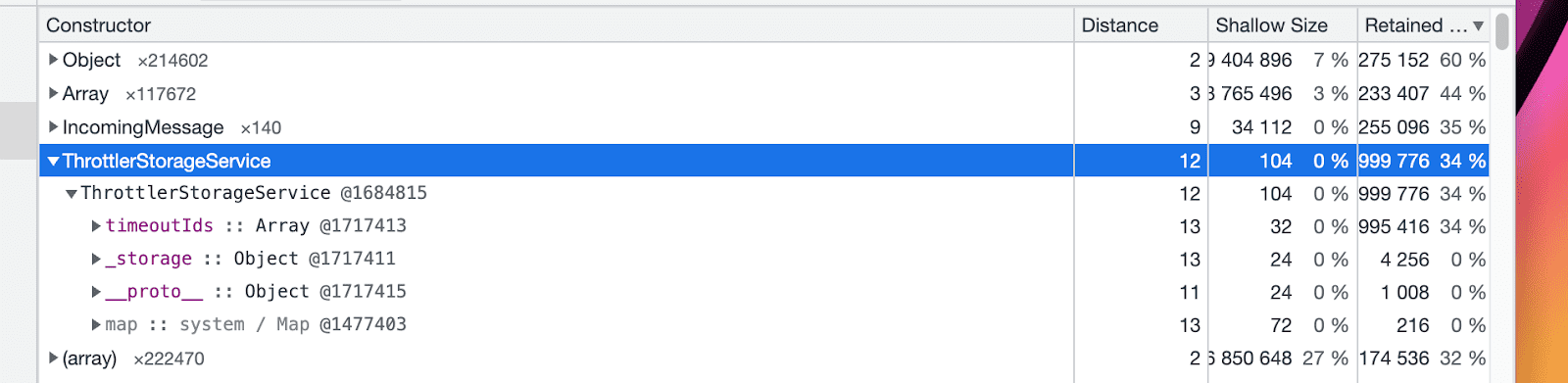
Digging into it, the ThrottlerStorageService (from the NestJS throttler used on our GraphQL APIs) maintains a timeoutIds array. For every incoming request, a new Timeout object gets added to the array:
![Diagram: 2 phones sending Request 1 and Request 2 to a server, resulting in [Timeout_1, Timeout_2] in memory](/static/49879a2ede95f68df5fd9954625660ff/29007/10.png "Diagram: 2 phones sending Request 1 and Request 2 to a server, resulting in [Timeout_1, Timeout_2] in memory")
The timeouts were never being cleaned up. With every request the array grew, and with thousands of requests per hour, the memory ballooned:
![Diagram: N phones sending N requests, resulting in [Timeout_1, Timeout_2, ..., Timeout_N] filling memory](/static/4d658dd268feb844e95638992424d237/29007/11.png "Diagram: N phones sending N requests, resulting in [Timeout_1, Timeout_2, ..., Timeout_N] filling memory")
Applying the fix
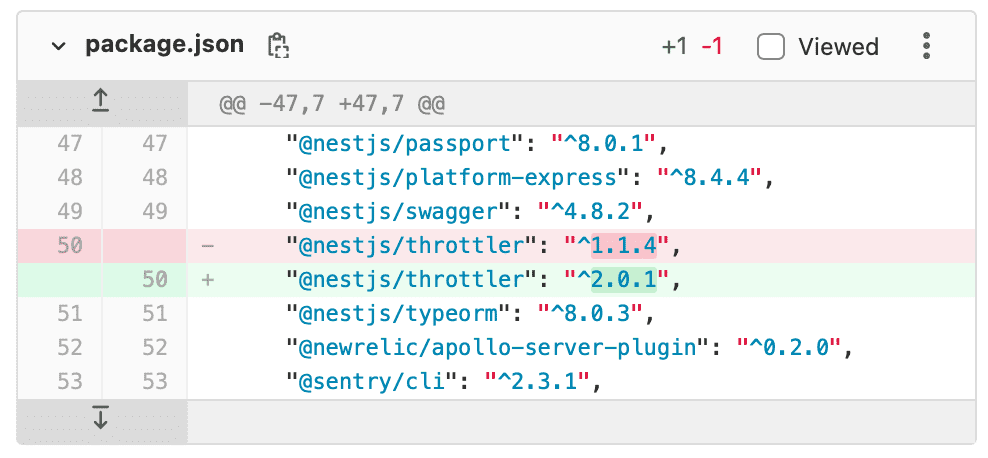
The package maintainers had already identified and fixed this in v2.0.1. The release notes confirmed it exactly:
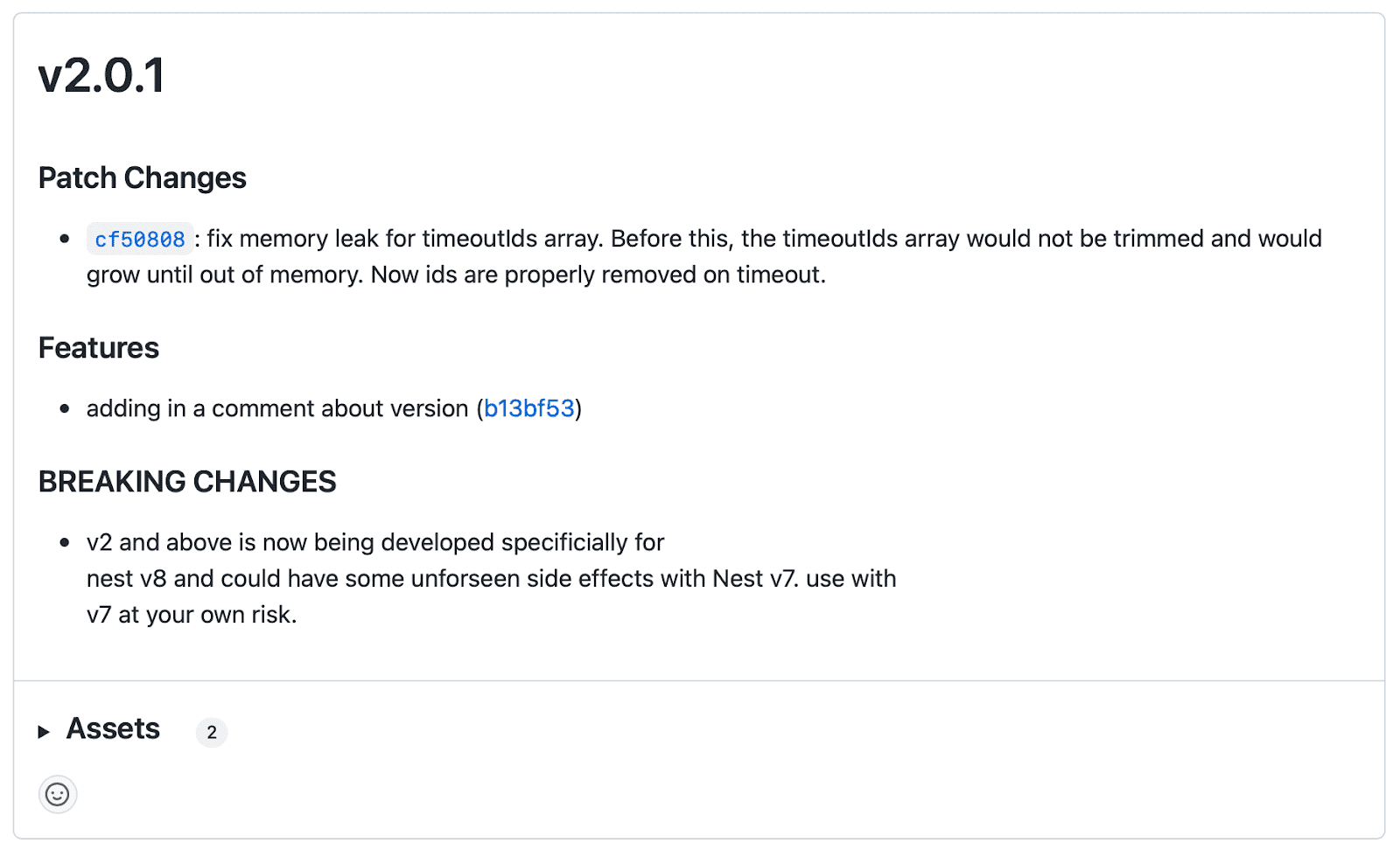
The fix was a one-line change in package.json:
After the fix
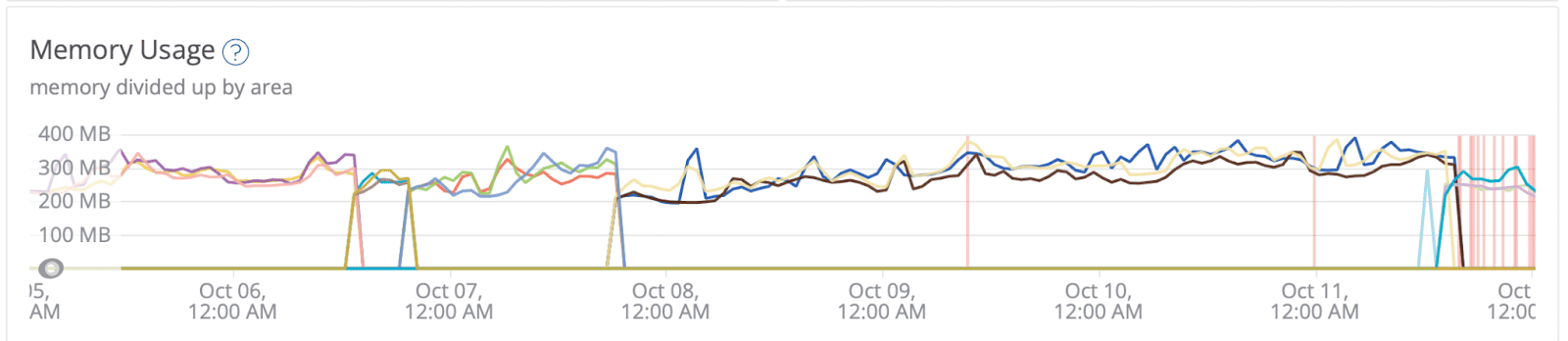
We monitored memory consumption over the following week. The heap size stabilised completely — no more unbounded growth, and the service no longer needed to be over-provisioned with gigabytes of RAM:
Written during my time at OOZOU, where I was embedded with the Makro Pro engineering team building Thailand's #1 B2B wholesale e-commerce platform.